

Have you ever shared your screen during a client meeting and noticed a private email address, customer record, billing detail, or internal dashboard in the background?
When you use Google Chrome for presentations, tutorials, product demonstrations, or remote support, sensitive information can appear on the webpage you're sharing. Closing every tab or switching to dummy data can help, but these steps aren't always practical.
A Chrome extension to blur sensitive information gives you another option: hide selected webpage content while keeping the rest of the page visible.
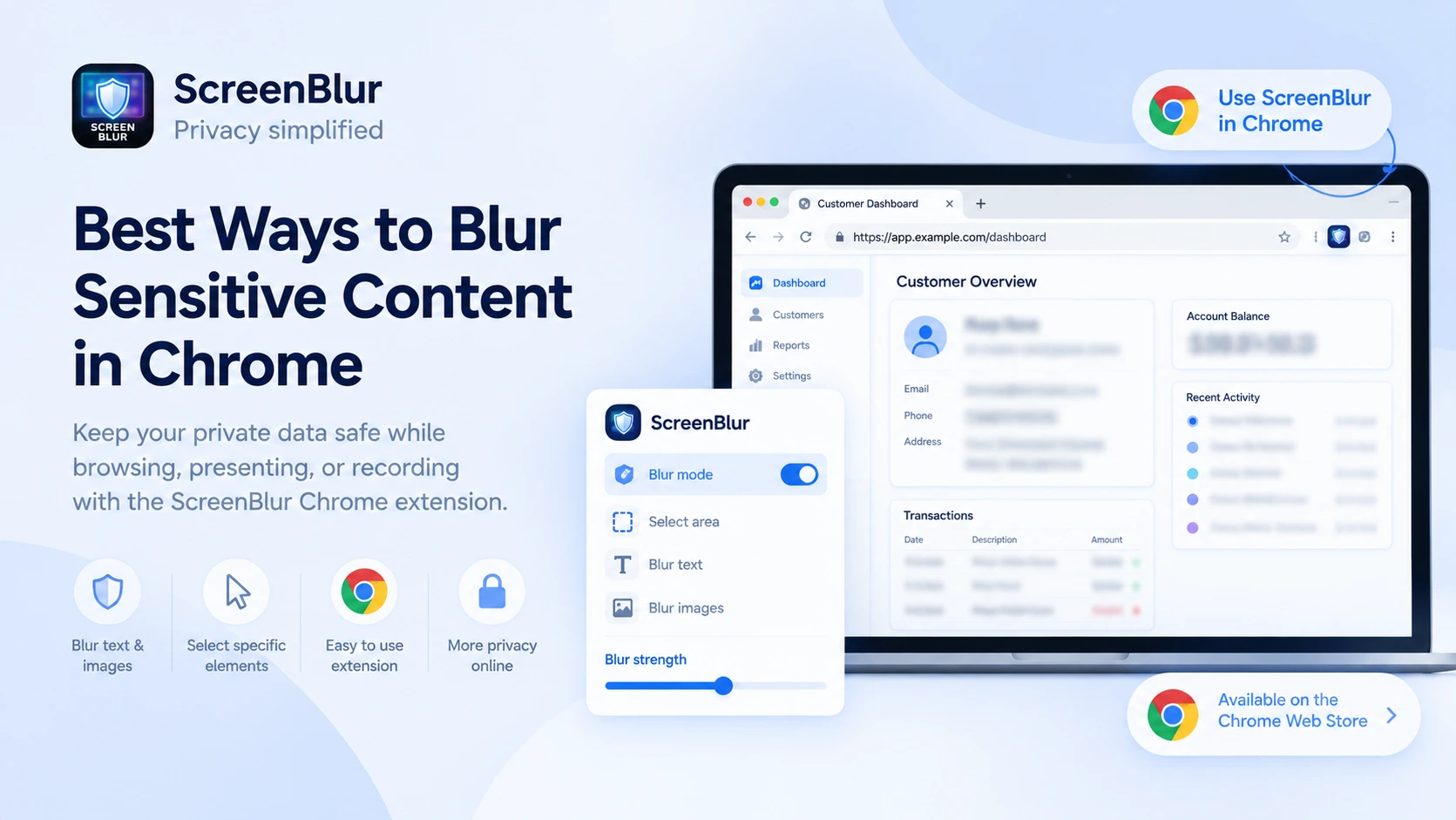
In this guide, we'll explain the main ways to blur webpage content in Chrome, what to look for in a privacy extension, and how ScreenBlur can help you prepare for screen sharing and recording.
Quick answer: How do you blur sensitive information in Chrome?
The simplest approach is to use a browser extension designed to blur selected webpage content.
- Install a suitable extension from the official Chrome Web Store.
- Open the webpage you plan to present or record.
- Activate the extension and select the sensitive content you want to obscure.
- Adjust the blur strength if the extension supports it.
- Review the page and test the exact screen-sharing or recording setup before starting.
For example, ScreenBlur lets you blur selected content directly on webpages. You can explore it through the ScreenBlur Chrome extension listing.
Remember that a visual blur is a privacy aid, not a replacement for access controls, removing secrets from a page, or using appropriate test data.
Why blur webpage content in Chrome?
Chrome is frequently used to access tools containing information that shouldn't appear in public videos or client presentations. Even when the purpose of a demonstration is harmless, an unexpected detail can expose more than you intended.
Common examples include:
- Email addresses and personal details: Information visible in inboxes, contact pages, and user profiles.
- Customer records: Names, account details, and support conversations in CRM or help-desk tools.
- Financial information: Billing dashboards, transaction histories, and account balances.
- Developer information: API keys, access tokens, internal URLs, and configuration details.
- Business dashboards: Internal metrics, confidential reports, and unreleased product information.
Blurring selected elements helps you keep the relevant parts of a webpage visible without displaying every detail.
5 ways to hide sensitive information in Chrome
1. Use a Chrome extension built for selective blurring
A dedicated blur extension is useful when you need to hide a specific part of a webpage rather than obscure the entire browser window.
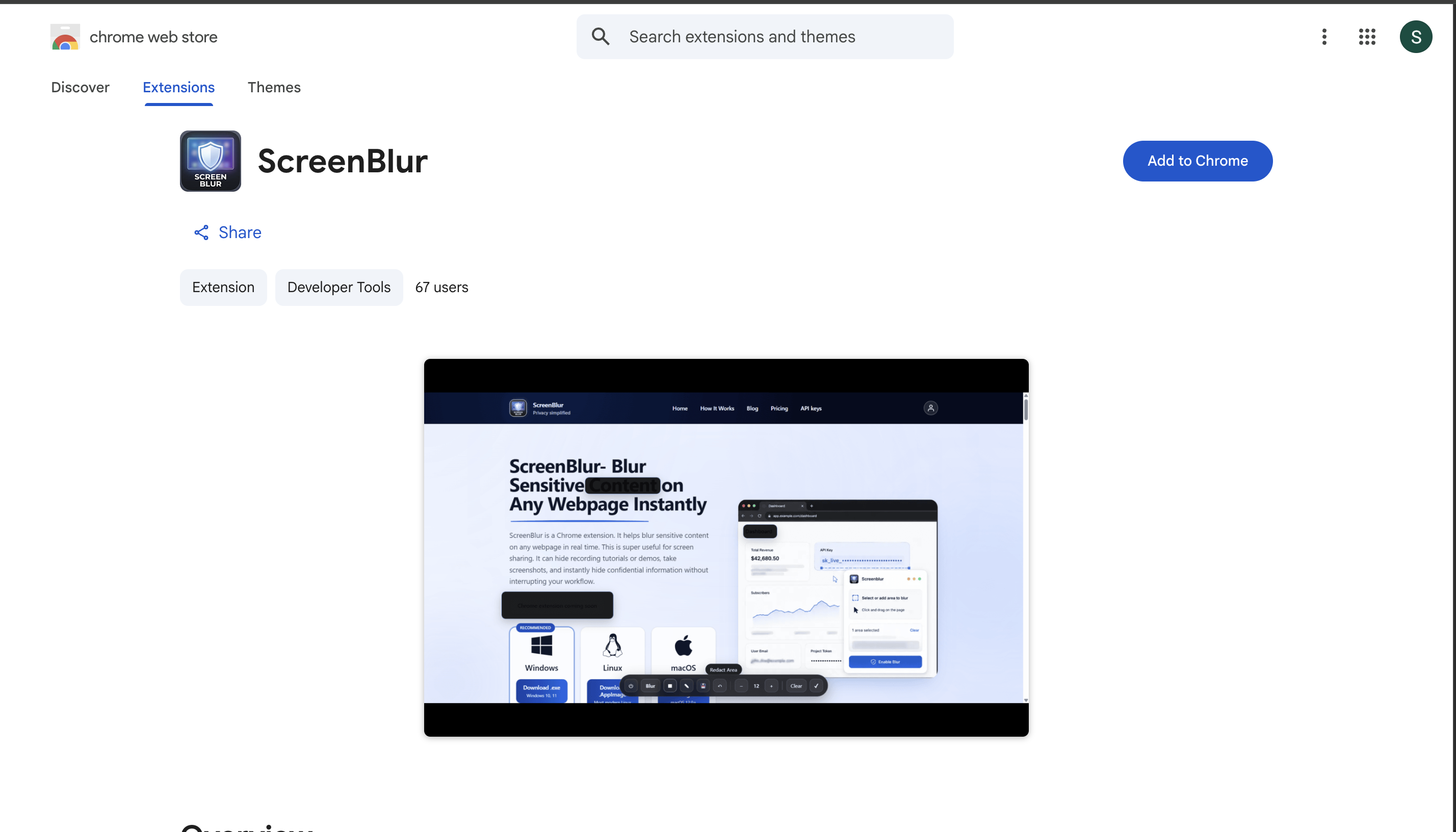
Depending on the extension, you may be able to select individual elements, text, or rectangular areas. Some tools also provide controls for adjusting blur intensity.
How to use ScreenBlur:
- Open the ScreenBlur Chrome extension page.
- Install the extension and follow its setup instructions.
- Navigate to the webpage you want to share.
- Activate ScreenBlur and select the content you need to obscure.
- Adjust the blur strength and inspect the result.
- Start your presentation or recording only after checking the page.
ScreenBlur is designed for real-time webpage blurring, making it useful for product walkthroughs, customer demonstrations, online teaching, and browser-based tutorials.
Best for: People who regularly present browser content and need to hide selected information without editing a recording afterward.
2. Use a rectangular area to cover private details
Sometimes the information you need to hide isn't a single text element. It may be a chart, a section of a dashboard, a customer card, or a portion of a page.
In that situation, an extension with area-based blurring can be helpful. You select the region that contains the private information instead of applying a blur to the whole page.
This can be particularly useful when presenting a CRM dashboard, analytics report, or administration panel.
Before sharing, check that the selected region covers the entire sensitive area. Names, values, labels, and related details can appear outside the obvious field.
3. Close or navigate away from sensitive content
You don't always need an extension. If a page contains information that isn't required for the demonstration, the safest option may be to close it or navigate to a different page.
You can also:
- Close unrelated browser tabs.
- Sign out of accounts that aren't needed.
- Use a dedicated demo account with sample data.
- Avoid opening personal email or payment pages during a presentation.
- Share a specific browser window rather than your entire desktop when appropriate.
These steps reduce the chance of accidental exposure, although they don't help when you need to show a real webpage with selected details hidden.
4. Use test data instead of real customer information
If you're preparing a recurring demonstration, create a dedicated environment with fictional names, sample transactions, and non-sensitive records.
Test data is often preferable to blurring because it reduces the risk of exposing real information in the first place. It also makes recordings easier to reuse.
For developers, use safe example credentials rather than real API keys or access tokens. If a secret has already been exposed in a recording or public demonstration, masking the visible text alone may not be sufficient; revoke or rotate the credential when appropriate.
5. Edit a recording when you need post-production control
If you already recorded a video containing private information, you may be able to use a video editor to apply a blur, mask, or crop.
This approach can work for published tutorials and edited product videos, but it usually requires additional review. You may need to track moving elements or apply the mask across multiple frames.
For live demonstrations, it is generally more practical to prepare the webpage before recording rather than depend entirely on post-production.
What should you look for in a Chrome blur extension?
Not every privacy extension works in the same way. Consider these factors before choosing one.
Also review the extension's current permissions, privacy policy, update history, and compatibility with the websites you use. Don't assume that every extension stores settings locally or processes data in the same way.
ScreenBlur: Blur webpage content before you share
ScreenBlur is designed to help people obscure sensitive content during screen sharing, recording, and presentations.
Its Chrome extension focuses on webpage content, so you can keep the parts of a page that matter visible while hiding selected information.
Potential use cases include:
- Demonstrating a SaaS product without displaying real customer details.
- Recording a tutorial that includes account pages or internal dashboards.
- Presenting website analytics while obscuring confidential figures.
- Providing remote support without unnecessarily exposing customer information.
- Creating educational content using real browser workflows.
ScreenBlur also offers a desktop app for situations where you need to obscure content outside the browser. The browser extension and desktop app serve different needs, so choose the version that matches what you plan to share.
Learn more on the ScreenBlur or visit the How It Works page.
Important limitations of browser blurring
A blur overlay is useful, but it shouldn't be treated as a complete security boundary.
Keep these limitations in mind:
- Verify every sensitive detail: A blur may not cover nearby labels, duplicate values, or related information elsewhere on the page.
- Test dynamic pages: Dashboards and web apps can change after navigation, scrolling, or refreshing. Check that your selected blur still covers the intended content.
- Review the actual output: Confirm what viewers can see in your chosen sharing or recording setup before presenting.
- Protect credentials at the source: Don't expose live passwords, API keys, or tokens just because you plan to blur them.
- Understand the tool's privacy practices: Check permissions and data-handling disclosures before installing an extension.
If you need to share confidential information, use appropriate access controls and approved data-handling procedures alongside visual blurring.
Frequently asked questions
Is there a Chrome extension to blur sensitive information?
Yes. Browser extensions such as ScreenBlur are designed to obscure selected webpage content. Review the current extension listing to confirm features, compatibility, and permissions before installation.
Can I blur only one part of a webpage?
Some extensions let you select individual elements or specific areas instead of blurring the entire page. ScreenBlur supports selective webpage blurring; check the current extension instructions for the available controls.
Can I blur text on a webpage without editing a video?
Yes. A suitable browser extension can apply a visual blur directly to webpage content before or during a screen-sharing or recording workflow, so you may not need to edit the resulting video afterward.
Does a Chrome blur extension work in Zoom or Google Meet?
A browser extension can obscure webpage content that appears in your shared browser view. The result depends on the page, extension, and sharing setup, so test it before the meeting. Browser-only blurring does not automatically cover every native desktop application.
Is blurring sensitive information enough to protect confidential data?
No. Blurring is an additional visual safeguard, not a substitute for access controls, safe demo data, or removing exposed secrets. Use stronger protections when handling sensitive information.
What's the difference between a Chrome extension and a desktop blur app?
A Chrome extension focuses on content inside supported webpages. A desktop app can be designed to cover content across multiple applications and the wider desktop. ScreenBlur offers both options for different workflows.
Final thoughts
If you regularly share browser windows, record tutorials, or demonstrate web applications, a Chrome extension to blur sensitive information can help you prepare a cleaner, more privacy-conscious presentation.
Start by closing unnecessary tabs and using sample data whenever possible. When you need to show a real webpage, selective blurring can help hide details that viewers don't need to see.
Explore ScreenBlur to learn how its Chrome extension can help you blur webpage content before sharing or recording.
Related: How to Blur Sensitive Information During Screen Sharing?